Other devices and security
Latentry is meant for your own computer or a home network you trust. It has no accounts or passwords. This computer can always use it; any other device must be paired first, with a code shown on this computer.
Use it from a phone or another computer
By default Latentry listens on this computer only (127.0.0.1). To open it to your network:
-
Add to
.env.local(in the Latentry folder):LATENTRY_HOST=0.0.0.0 -
Restart Latentry (
npm start). Notnpm run dev: the development server's error pages show this computer's file paths and source code to every device that opens them, and it warns when started that way. - On Windows, when the firewall asks, allow Node.js on private networks.
- On the other device, open
http://<this computer's address>:3000, for examplehttp://192.168.1.20:3000. It shows Pair this device. - On this computer, open Settings, scroll to Phones and other computers and choose Add a device.
- Type the code it shows on the other device, give the device a name if you like (for example "My phone"), and choose Pair.
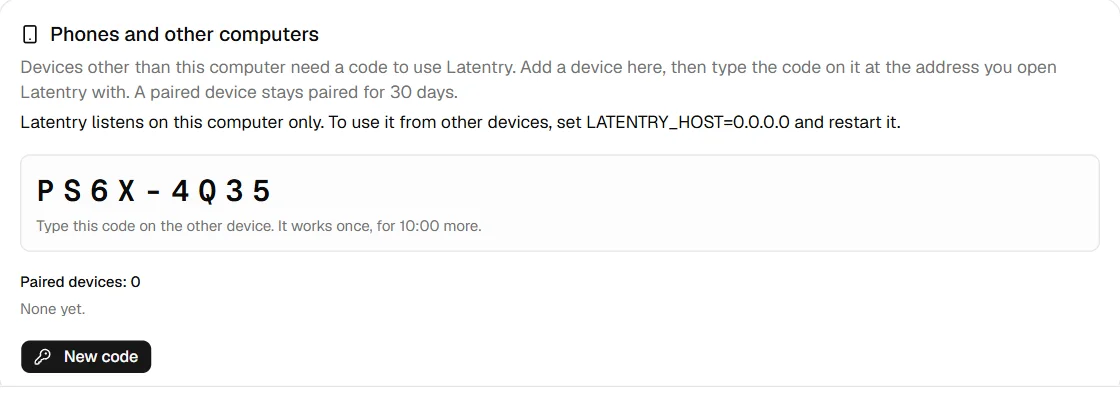
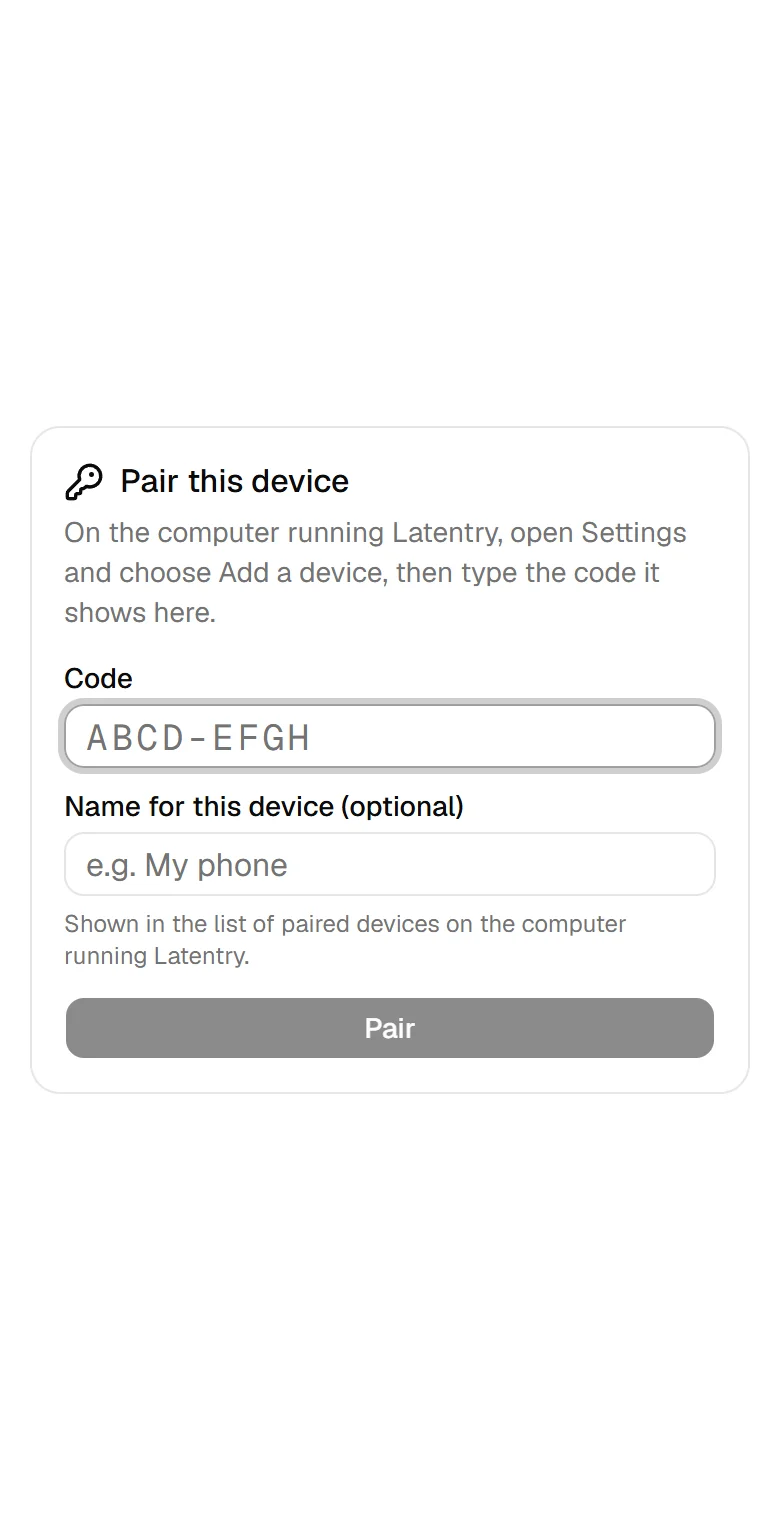
The code works once, for 10 minutes. A paired device stays paired for 30 days; then it asks for a new code.
- On this computer, the same card lists the paired devices, each with its name (or a number), when it was paired and when that ends. Remove unpairs one device; Forget all devices unpairs them all (for a lost phone, say).
- On a paired device, its Settings page says what it is paired as and when that ends, and Unpair this device unpairs it. From three days before the end, every page says so, with a link to pair it again.
The list keeps only the name, when the device was paired and when that ends; nothing about when or how it is used. It is stored encrypted next to the settings file.
Paired devices can generate and use the gallery. Settings and Setup stay
read-only from them: settings decide which folders are read and written.
SETTINGS_EDIT=off makes them read-only everywhere.
An owner device
When you do not use a browser on the computer running Latentry (it runs in Docker, or on a computer you use from your laptop), make your own browser its owner device: it may change Settings and Setup and pair your other devices. See Owner device.
HTTPS
Latentry itself serves plain http://. To keep cookies, prompts and
pictures unreadable on your network, put a reverse proxy that does TLS on
the same computer in front of it, for example Caddy:
latentry.home.arpa {
    tls internal
    reverse_proxy 127.0.0.1:3000
}
Keep Latentry on 127.0.0.1 (the default) so devices reach it only through
the proxy, add the proxy's name to ALLOWED_HOSTS, and trust Caddy's local
certificate on your devices. Over HTTPS the device cookie is marked
Secure, so the browser never sends it over plain http://.
Backends on other computers
Pairing protects Latentry, not the servers it draws with. A ComfyUI or AUTOMATIC1111 / Forge server that Latentry reaches at another computer's address listens on the network itself, and anyone who can reach it can use it without Latentry: ComfyUI has no login, and its custom nodes run code on that computer. Exposed ComfyUI servers have been taken over this way.
So Settings warns, under the backend, when a comfyui or a1111
backend's address is not this computer's and it has no token. The safest
setup is the backend on the same computer as Latentry, listening on
127.0.0.1 (ComfyUI's default; an A1111 web UI without --listen). For one
on another computer:
- AUTOMATIC1111 / Forge: start it with
--api-auth user:passwordand enteruser:passwordas the backend's token. - ComfyUI: put a reverse proxy that asks for a login in front of it, bind ComfyUI itself to 127.0.0.1 on that computer, and enter the proxy's token (sent as a Bearer token).
Either way, allow only the computer running Latentry through that computer's firewall if you can. See Backends.
Tip: keep the pairing key in your keychain
Paired devices are recognised by a key in latentry.pairing-key, next to
the settings file (the Latentry folder by default). The list of devices is
encrypted with it. Anyone who can read that folder can read the key, so you
may prefer to keep it in your system's keychain and hand it to Latentry
when it starts, in LATENTRY_PAIRING_KEY. Latentry then reads no key file
and writes none.
Stop Latentry first, run the steps in the Latentry folder, and from then on start it as shown. Moving the key this way keeps every device paired.
Windows (PowerShell 7)
The key is sealed for your Windows account with DPAPI, the protection Credential Manager uses:
Get-Content latentry.pairing-key | ConvertTo-SecureString -AsPlainText -Force |
  ConvertFrom-SecureString | Set-Content "$env:LOCALAPPDATA\latentry-pairing-key.dpapi"
Remove-Item latentry.pairing-key

# Each time you start Latentry:
$env:LATENTRY_PAIRING_KEY = Get-Content "$env:LOCALAPPDATA\latentry-pairing-key.dpapi" |
  ConvertTo-SecureString | ConvertFrom-SecureString -AsPlainText
npm start
macOS (Keychain)
security add-generic-password -a latentry -s latentry-pairing-key -w "$(cat latentry.pairing-key)"
rm latentry.pairing-key

# Each time you start Latentry:
LATENTRY_PAIRING_KEY="$(security find-generic-password -a latentry -s latentry-pairing-key -w)" npm start
Linux (Secret Service: GNOME Keyring, KWallet)
secret-tool store --label="Latentry pairing key" service latentry account pairing-key < latentry.pairing-key
rm latentry.pairing-key

# Each time you start Latentry:
LATENTRY_PAIRING_KEY="$(secret-tool lookup service latentry account pairing-key)" npm start
Good to know:
- Do not put
LATENTRY_PAIRING_KEYin.env.local: that is a file on disk again. - If Latentry starts without it (and without the file), it makes a new key, and every device has to pair again.
- While Latentry runs, the key is in its environment, which other programs running as you can read. The keychain keeps it off the disk, not away from your own account.
- Forget all devices empties the list but keeps this key. To replace the
key as well, store a new one in the keychain (64 hex characters, for
example from
node -e "console.log(require('crypto').randomBytes(32).toString('hex'))"); every device then pairs again. - The built-in engine is not given the key.
What protects it
- It listens on 127.0.0.1 unless
LATENTRY_HOSTsays otherwise. The pairing card on Settings says which: this computer only, or open to your network. - The settings file, the pairing key, the paired-device list and the folder-name key can be read only by you: on Windows Latentry gives each an access list with only your account (and Windows itself), wherever Latentry is installed; elsewhere they are written with mode 600.
- Every device other than this computer must be paired: until then it gets
only the pairing page, and every
/apicall is refused. A paired device holds a signed cookie that scripts on the page cannot read. Over plainhttp://that cookie, like everything else, travels unencrypted on your network. /apionly answers forlocalhostand private-network addresses (add others withALLOWED_HOSTS), and refuses requests from other websites.- Requests are rate-limited per device, counted by the address the connection really comes from.
- Stopping a run takes that run's id. Devices that are not paired never get one; paired devices share ordinary runs (a reload on any of them picks the run up again), and a secret run can be stopped only from its own page.
- Paired devices do not see this computer's paths or folder names. Gallery
folders are shown by their display name (Settings > Gallery folders) or a
made-up one such as "Amber Fox", models by their file name only, and
error messages with paths in them as
<path>. The LoRA list (file names) goes to them only if Show the LoRA list on paired devices is on (Setup > Engine), a ComfyUI backend's workflow names only if Show workflow names on paired devices is on for it (Settings > Backends), and the wildcards (their names, and their lines in a prompt) only if Use on paired devices is on (Settings > Wildcards). - The built-in engine listens on 127.0.0.1 with a random token only Latentry holds, and answers only requests addressed to this computer.
- Backend tokens are only sent to the server they were set up for.
- Show in folder / Open in default app in the gallery only work from this computer. They start the file manager or picture app without a shell, and only for pictures inside a gallery folder. The gallery has no way to delete, move or rename files.
- Next.js's anonymous usage reports and Hugging Face's are turned off.
To reach it from outside your network, put an authenticating reverse proxy in
front, on this computer, one that overwrites X-Forwarded-For (Latentry
believes that header only from a proxy on this computer). If that proxy does
its own login, LATENTRY_PAIRING=off turns pairing off; without such a
proxy, do not: then anyone who can reach Latentry can use it.
Report security problems privately through GitHub.