From a picture
Start from a picture you already have: redraw it, change only part of it, grow its canvas, or take its tags. The rest of the form works as on Generate.
Drop a picture on Source image (img2img), choose one From gallery, or use Use as source under a result. Then choose what it is for:
- Variation / edit: the picture is redrawn. Strength decides how much: low keeps the source, high redraws more. The output keeps the source's aspect ratio at about the width × height area set below.
- Pose reference: the reference's composition and silhouette carry over, the rest is redrawn (strength starts at 0.85). For exact limbs, use the skeleton pose instead.
- Upscale: the picture itself is made larger; see Upscale a picture.
- Extend: the canvas grows around the picture and the new area is drawn (outpainting); see Extend a picture.
While a source is set, the Hires fix section is hidden.
Inpainting: redraw only part of it
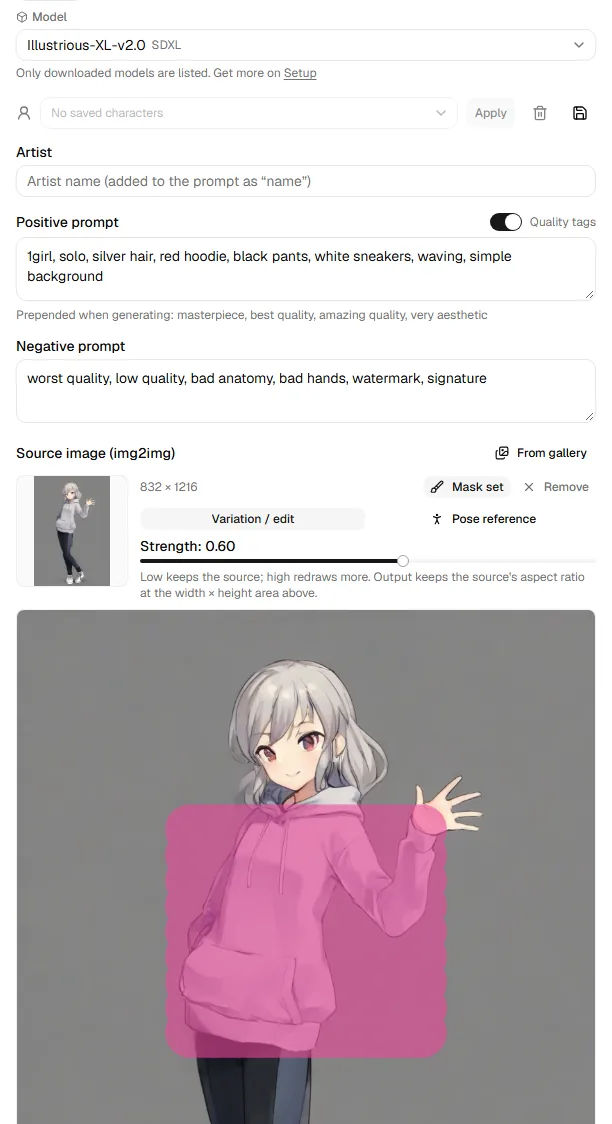
Press Draw mask and paint over what should change: only the painted area is redrawn, everything else stays exactly as the source. Brush, Eraser, Clear and the brush size are under the picture. Strength around 0.6–0.8 works best; near 1.0 the painted area ignores the source and stops fitting its surroundings.
The source picture, mask and pose are sent together, up to 48 MB. Only a very detailed 2048px source comes near that; if it goes over, a message asks for a smaller or simpler picture.
On a ComfyUI backend, the source and mask are uploaded into ComfyUI's input folder under two names that each run reuses; after a secret run they are overwritten with an empty picture (see Backends).
Extend a picture (outpainting)
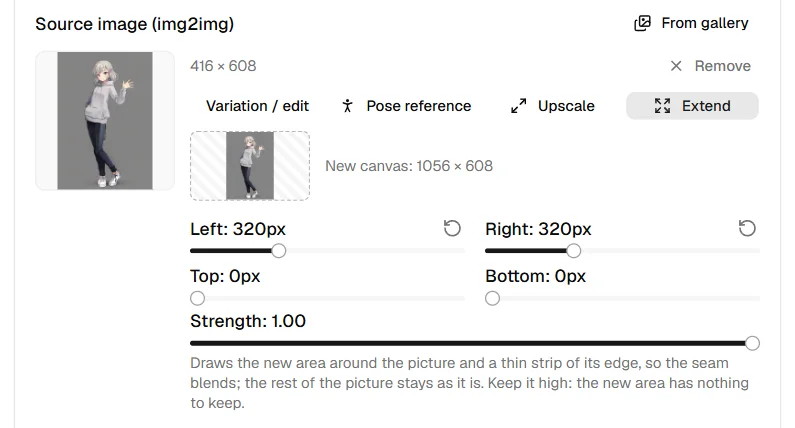
Extend (on backends that can inpaint) grows the canvas: Left, Right, Top and Bottom set how many pixels each side gains, and the preview shows the new canvas with the picture in place. Only the new area and a thin strip of the picture's edge (32 pixels, so the seam blends) are drawn; the rest of the picture stays as it is. The prompt should describe the whole new scene. Strength starts at 1.0, since the new area has nothing to keep.
The canvas can be at most 2048 pixels a side, and each side grows by at
most 1024; a slider stops where the canvas would pass that. The size is
rounded up to a multiple of 16 on the right and bottom, so every backend
draws it as it is. The width × height set below do not apply. The picture
is saved with the mode outpaint.
Tags from the source
Extract tags reads the source's WD14 tags (a tagger must be set up; see Settings) and sorts them into groups: character, subject, hair, eyes, body, outfit, expression, pose, scene / other. The groups that make the character (hair, eyes, body, outfit) start selected; click a tag or a group name to toggle, then Add to prompt. For a pose reference, only the pose group starts selected, so the reference's hair or outfit does not carry over.