Many pictures
Draw more than one run without waiting: queue runs, compare settings in an X/Y grid, and let wildcards vary the prompt from run to run.
The queue
A backend draws one run at a time. While one is going, Generate becomes Add to queue: change the prompt or the settings and add another run, up to 8 waiting on each backend. They start in turn, each as soon as the one before it ends, and their pictures are saved like any others.
- Waiting under the results lists the runs this page added, with how many runs are ahead of the first, and × to take one out again.
- Another page or device sees only how many runs are waiting, not what they draw, and cannot take them out.
- The list is kept in this browser tab's memory only. Going to the gallery and back keeps it. After a reload the runs still start in turn, but the page no longer lists them, so they can no longer be taken out. In secret mode it is kept only while Generate is open.
- If the backend is busy with a run Latentry did not start (from its own web UI, say), the first run says Waiting for the backend and starts once it is free. After 30 minutes it gives up.
- The queue is held in memory only. Stopping Latentry drops the runs that were still waiting.
X/Y grid
X/Y grid under the settings draws the run again for each value of one setting (the X axis), or of two (X across, Y down), so the pictures can be compared side by side. Turn it on, pick a setting for each axis and type its values. The button becomes Queue grid with the number of cells.
| Axis | Values |
|---|---|
| CFG, Steps, Seed, Hires denoise | Numbers with commas between them, or a range: 20-40:5 is 20, 25, 30, 35 and 40, and 1-4 steps by 1. Hires denoise needs Hires fix on. |
| Sampler, Scheduler | Click the names the backend lists. |
| Prompt S/R | Text. The first value is looked for in the prompt (or the negative prompt), and each value takes its place in turn: red hair, blue hair, "" draws the prompt as typed, then with blue hair, then with neither. Put a value with a comma in it in double quotes. |
To compare a LoRA's weights, use Prompt S/R: with <lora:style:0.4> in the
prompt, <lora:style:0.4>, <lora:style:0.8>, "" draws it at two weights and
without it.
- Every cell uses the same seed, so the setting is the only thing that changes. With the seed on random, one is picked for the whole grid and shown above it. Wildcards are filled in once for the whole grid.
- A grid has up to 16 values an axis, 64 cells, and 128 pictures in all (cells × pictures per run).
- The grid waits in the queue as one run, and its cells run one after another with nothing in between. A run added while it goes waits until the whole grid is done.
- The cells fill in as they finish. Click one to see it full screen, named by its place in the grid, with the values as you typed them. Cancel grid stops the cell that is going and drops the rest. A backend first finishes the step it is on, which on a web UI can take a while: the grid says Stopping… until it has. The cell that was going says Stopped, and the ones after it Did not run. A web UI hands back the unfinished picture it stopped on, which the cell shows marked Stopped.
- Each cell's pictures are saved like any others, and record the grid and their place in it. In the gallery, Stack: Same X/Y grid puts a grid's pictures in one card.
- Save sheet puts a finished grid's cells in one picture, with the values written above and beside them and the settings they change at the top, and saves it to the gallery. It uses the first picture of each finished cell, from the save folder; a stopped cell is left empty. Nothing is made unless you click it, and secret mode does not offer it.
- Another page or device sees only that one run is waiting, not that it is a grid or how many cells it has. Like the queue, the grid is kept in this tab's memory: after a reload its cells still run and are saved, but the page no longer shows the grid.
Wildcards
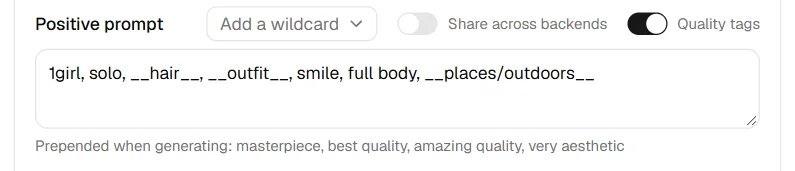
Write __name__ in the prompt (or the negative prompt), and each run takes
one line of name.txt from the wildcards folder set on
Settings; __folder/name__ reads from a
subfolder, as in A1111's Dynamic Prompts extension. Add a wildcard next
to the prompt lists them and puts one in at the cursor. A line is picked
once per run, so all the pictures of a run share it. With a fixed seed the
same lines come back, so a run can be drawn again; with -1 each run picks
anew. A line may hold wildcards of its own, up to 3 levels. The lines are
respelled for the profile like the rest of the prompt. A wildcard with no
file stops the run and says which one. The picture keeps the prompt with
the lines filled in, and the viewer shows the prompt as typed under
Wildcards. On paired devices wildcards work only if Use on paired
devices is on (Settings > Wildcards).