Gallery
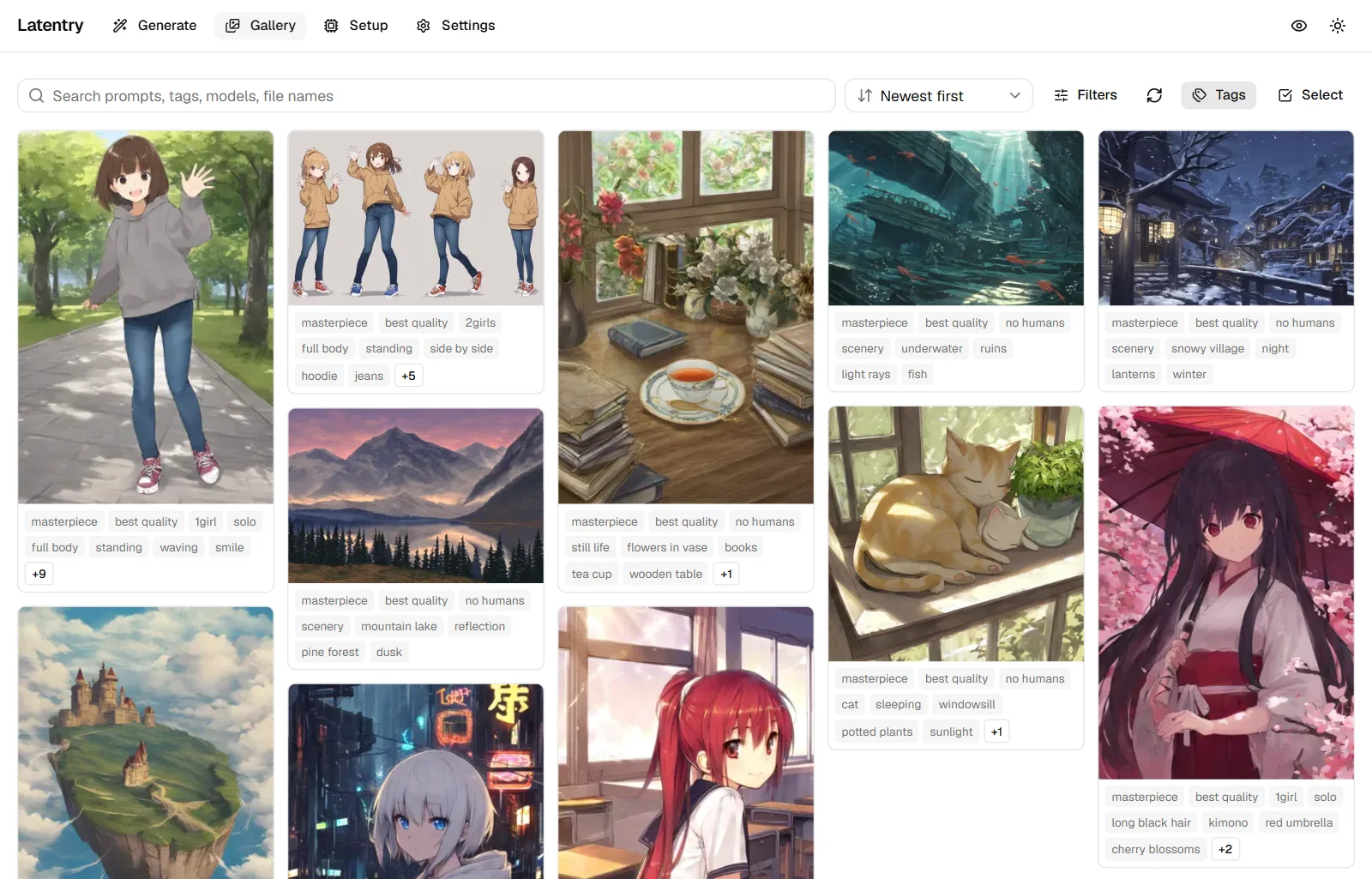
Every finished picture is saved to the save folder with its settings embedded in the PNG (A1111's PNG Info reads them too). Other folders, such as ComfyUI's or a web UI's output, can be browsed read-only. Choose the folders on Settings; with several, tabs switch between them. A tab shows the folder's display name, set next to the folder on Settings, or else a made-up name such as "Amber Fox" that stays the same for that folder. The folder's own name and path are never shown, here or on a paired phone.
The gallery reads settings from PNG, JPEG and WebP: A1111 / Forge's infotext (in PNG text, or EXIF in JPEG and WebP), ComfyUI's graph, and Latentry's own record, including the LoRAs a picture used. From ComfyUI it reads the graph that ran, or else the editor's workflow, and takes the base pass when there is a second (hires) one. Models are shown by their file name, without the folders they sit in. It reads only the file's headers, never the whole picture. From EXIF it reads only the fields that hold settings, never location or camera data.
Pictures load newest first as you scroll (see Order and filters for other orders); what is on screen stays in place while more load.
Search
Type in Search prompts, tags, models, file names:
- Commas separate terms, and every term must match. A term can be several words.
- Quotes match one tag exactly:
"long hair"does not matchvery long hair. Tags sent from the viewer are quoted. - Underscores and spaces are the same, and case does not matter.
- Unquoted terms also match the model and the file name.
key:valuesearches one setting.model:,sampler:andlora:match names that contain the text (model:noobai,lora:detail).lora:matches the LoRAs a picture was made with: the ones the backend applied, not every<lora:…>written in a prompt.seed:,steps:,cfg:,w:(width) andh:(height) compare numbers:steps:>=30,cfg:<5,w:1024(=when no comparison is given). Width and height are the picture's real size. Any other key is searched as plain text.- A leading
-leaves out pictures that match:-smile,-"long hair",-model:pony,-lora:detail. A-inside a term (x-ray) or a value (seed:-1) is just text.
While you use the search box, the same tips show under it. Hide tips turns them off (this browser remembers that), and the ? next to the box (Show search tips) brings them back. Refresh picks up pictures that arrived from elsewhere.
Order and filters
The menu next to the search box orders the pictures: Newest first,
Oldest first, Name A–Z, Name Z–A or Largest file first. Names
compare numbers as numbers, so img2 comes before img10. "Newest" means
the file's last change, so a picture copied in or tagged later counts as
new.
Four more orders need every picture in the folder looked at first:
- Made, newest first / Made, oldest first: when the picture was generated, as Latentry records it in the file. Pictures without that (from other tools) use the file's last change.
- Most pixels first / Fewest pixels first: width × height. Pictures whose size cannot be read go last.
The first time, the gallery reads the folder and shows how far it has got; after that only new or changed files are read. What it reads is kept in Latentry's memory only, never written to disk, and forgotten when Latentry stops. Folders of more than 20,000 pictures cannot use these orders.
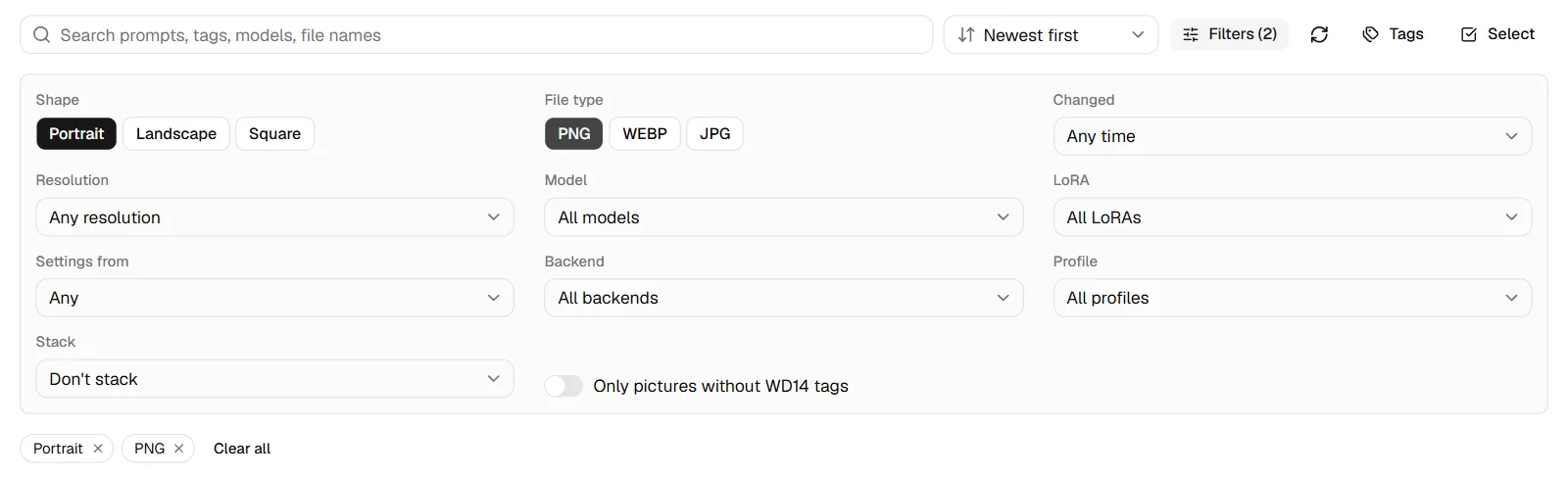
Filters opens the rest; each filter you set shows as a chip under the toolbar, with × to remove it (with two or more, Clear all removes them all):
- Shape: portrait, landscape or square.
- File type: PNG, WebP, JPG.
- Changed: the last 24 hours, 7 days or 30 days.
- Resolution: under 0.75 MP (SD 1.5 sizes), about 1 MP (SDXL sizes), or over 1.5 MP (upscaled).
- Model: every model named in the folder's pictures (the folder is read once when you open the filters). In secret mode model names are not shown, and the folder is not read for them.
- LoRA: every LoRA named in the folder's pictures, read the same way as the models (and hidden the same way in secret mode).
- Settings from: Latentry, A1111 / Forge, ComfyUI, or no settings at all.
- Backend and profile.
- Only pictures without WD14 tags.
Filters, order and search work together. The order and filters last until you leave or reload the page; they are not remembered in the browser.
Stacks and comparing
Stack (under Filters) puts pictures that share a prompt, a seed, or an X/Y grid (its cells and its sheet) into one card: the first of them in the current order, with how many there are. Only pictures that match the search and filters count. Click a stack to see its pictures, and remove the One stack chip to go back. Stacking reads the folder first, the way the orders by date made do; what it keeps in memory is a hash of each prompt, not the prompt.
X/Y grid (under Filters) shows only the cells of X/Y grids, only their sheets, or only pictures that are from no grid.
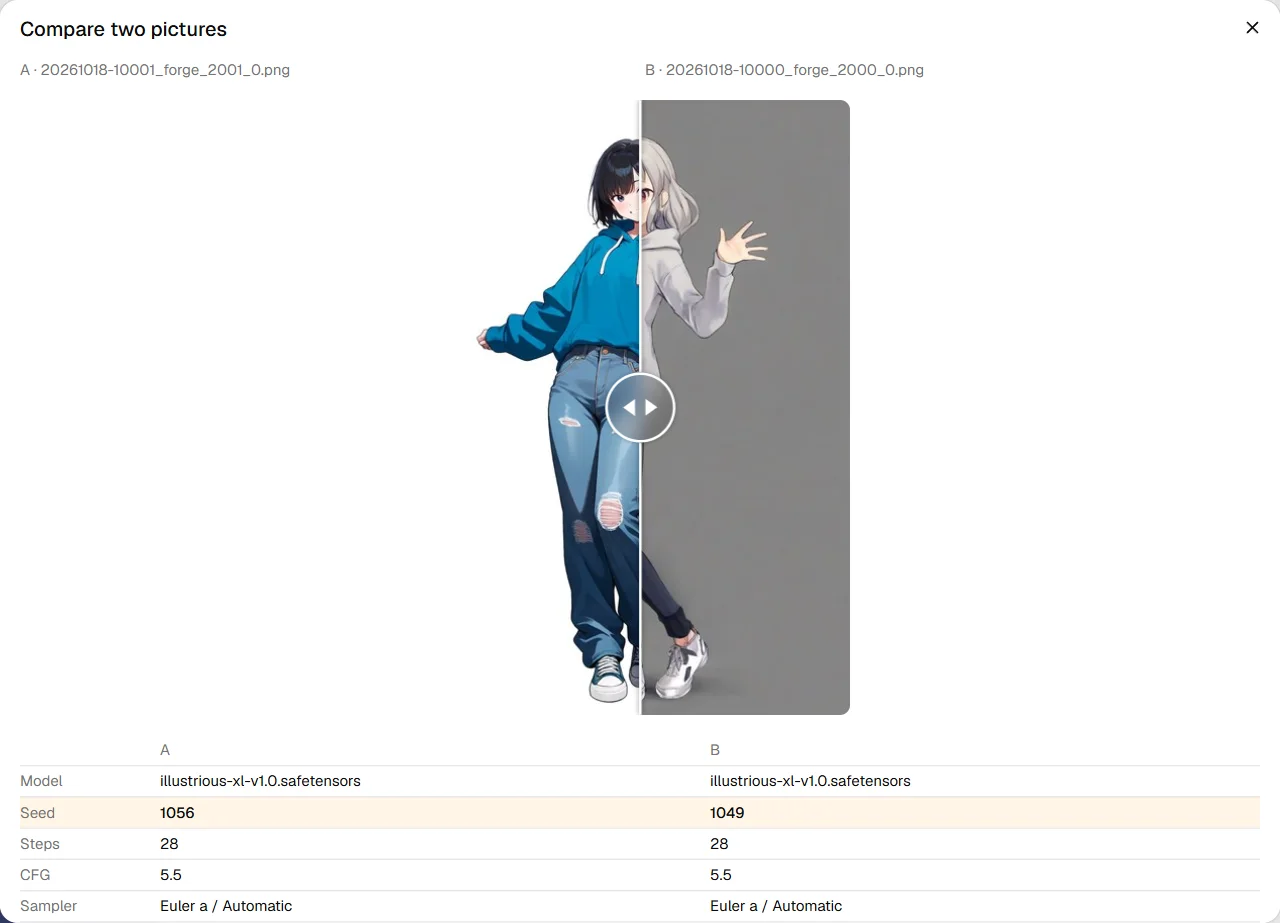
To compare two pictures, choose Select, pick two, and Compare. Two pictures of the same shape (an upscale, say) lie on top of each other with a slider between them. Others sit side by side. Below are the settings that differ, highlighted, and the prompt tags only one of them has. In secret mode the pictures are blurred and the rest hidden until Show for this comparison.
Tags
- Tags shows each picture's tags under its card: its prompt, or the WD14 tags read from it. Click a tag to search for it. A card shows its first tags; +N lists them all, and Show less, a click or tap anywhere outside the card, or Esc folds them again.
- Select picks pictures (or Select all, Select untagged) and Tag … with WD14 reads tags for all of them, skipping pictures that already have tags if you like. In the save folder the tags are written into the files; read-only folders show them without writing.
- Settings can tag every new picture as it is saved.
Tagging needs a tagger; see Settings.
The viewer
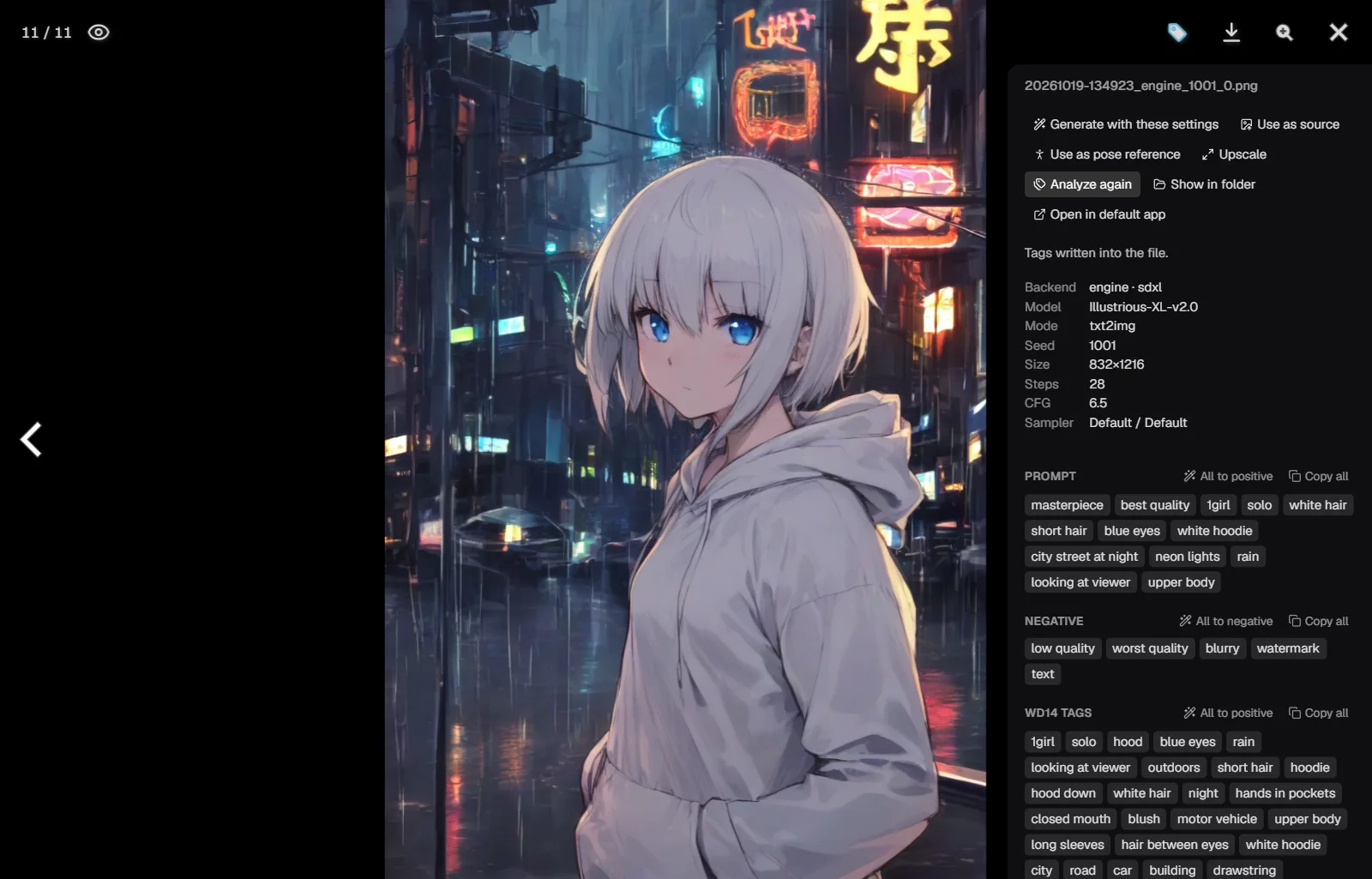
Click a picture to open it. Arrows or the keyboard move between pictures; the magnifier zooms; the download button saves it. The side panel shows the backend, model, mode, seed, size, steps, CFG, sampler, strength and hires fix it was made with, its prompt and negative prompt as tags, and its WD14 tags. In secret mode thumbnails are blurred and the panel hides all of that until you choose Show for this picture.
Size is the picture's own. When it was drawn smaller and then enlarged (hires fix or Upscale), Drawn at gives the size it was drawn at, the one its settings name and Generate with these settings uses.
From the panel:
- Generate with these settings: the prompts and seed go to the form (and, on the same backend, size, steps, CFG and sampler). Tags already in the form are replaced.
- Use as source: the picture becomes the form's source image; prompts and settings stay.
- Use as pose reference: its pose carries over to the skeleton pose, not its hair or outfit.
- Upscale: opens the picture in Generate to make it larger and redraw its detail (Upscale a picture), with its own prompts when it has them.
- Analyze with WD14: read its tags now (saved into the file in a writable folder).
- Show in folder and Open in default app: show the picture in this computer's file manager (selected, on Windows and macOS), or in the app it uses for pictures. Only when the browser runs on the computer Latentry runs on; other devices do not see these buttons. Latentry itself never deletes, moves or renames a picture. Do that in the file manager.
- Each tag: copy it, search for it, or add it to the positive or negative prompt. Each section: Copy all, All to positive, All to negative (tags already in the prompt are skipped).